
Workspace
Team and access
Invite colleagues, give each the role that fits, and decide which clients each person works on.
Owners and admins manage the team in Settings → Team. A person's access is made of two things: a role, which says what they may do, and a client scope, which says on which clients.
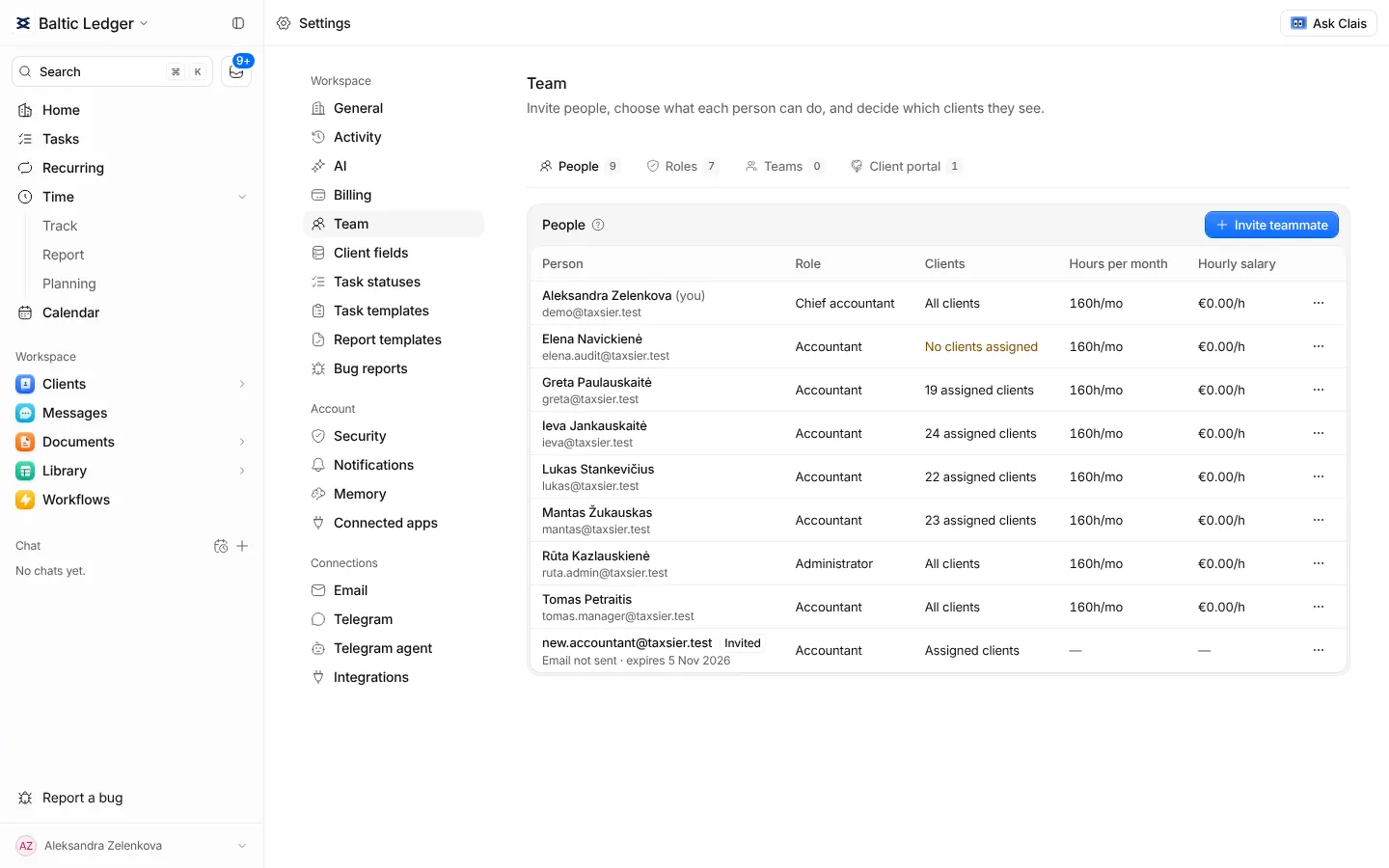
Invite a colleague
- In Settings → Team, press Invite teammate.
- Enter their email, choose a role and the clients they work on.
- Press Send invitation. They join from the link in the email and keep the access you gave them.
You can copy the invitation link instead, send the email again or cancel the invitation while it is pending.
Roles
Claister comes with ready-made roles, and a firm can change its copy of each one or make its own on the Roles tab.
| Role | In a sentence |
|---|---|
| Manager | Everything except people, roles and firm settings, which stay with owners and admins. |
| Chief accountant | A manager's work on the clients of their teams. |
| Accountant | Day-to-day work on their clients: tasks, recurring work, documents, requests, payments and messages. |
| Assistant | An accountant's work without recurring work, requests, client edits and assigning tasks. |
| Lawyer | Clients, contacts, documents, tasks and messages; no payments or time. |
| Employee | Their own tasks and time, the calendar, workbooks and papers. |
| Auditor | Read-only pages of their clients. |
A person can also be given or denied a single permission on top of their role.
Which clients a person sees
- All clients of the firm.
- Their teams' clients: the clients linked to a team the person is in, plus the ones they are on by name.
- Assigned clients: only the clients they are on the team of or responsible for.
- None.
Teams group people who work together. A team's clients are open to its members, and each team has a page with its tasks.
When someone leaves
Press Remove access on the person. They lose access at once; their work stays in the firm.