
Everyday work
Clients
Add companies by hand or import them from a file, and keep each one's tasks, documents, messages and history in one record.
A client is a company you work for. Its record keeps everything about it in one place: tasks, recurring work, requests, documents, messages, people and history.
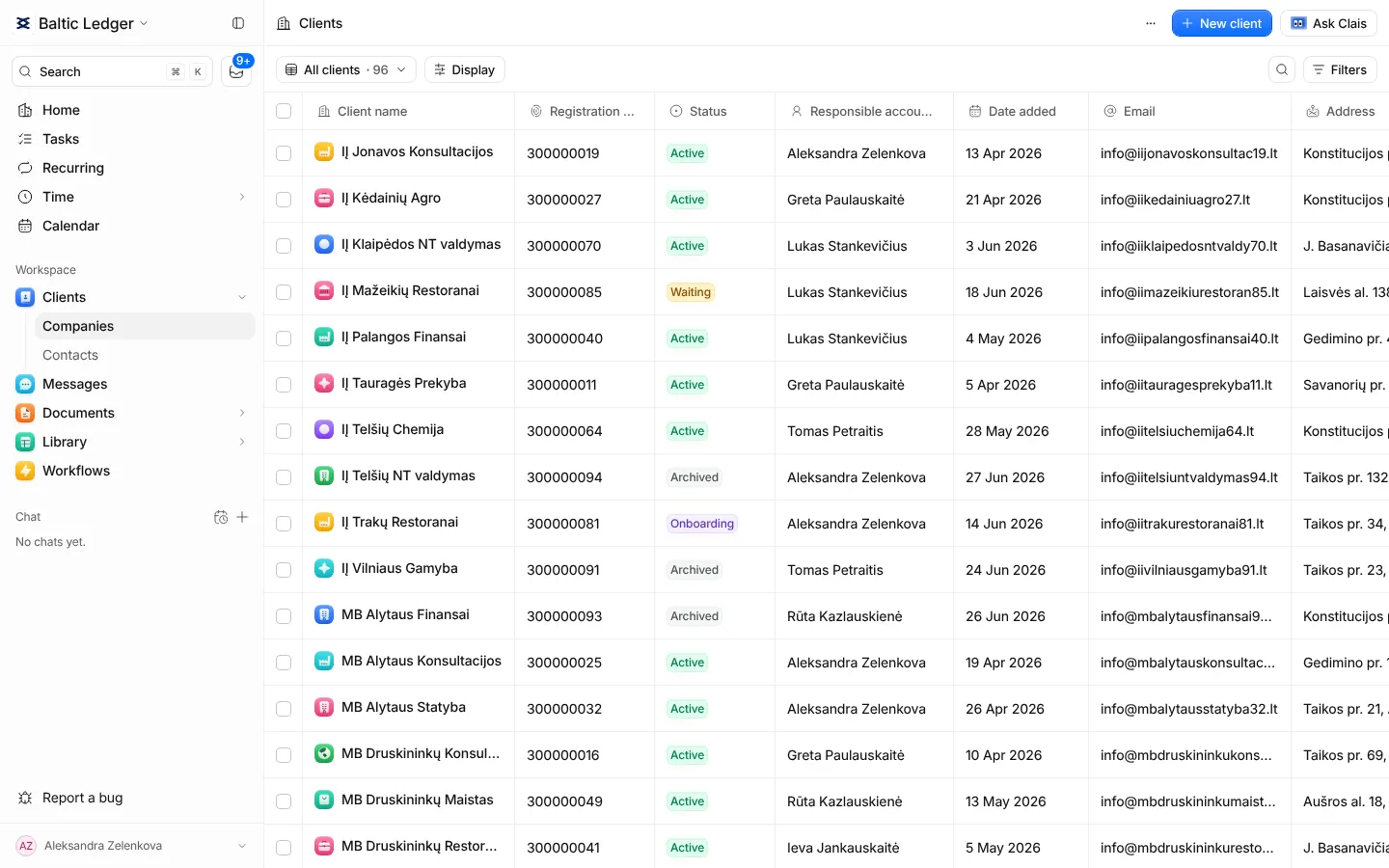
Add one client
- On Clients, press New client.
- Find the company in the registry search and its details fill in by themselves, or type them yourself. Only the name is required.
- Say what you do for the client and who looks after it. Tags and notes are seen only by your team.
- Answer the accounting profile questions: VAT, payroll, the accounting software. They decide which deadlines Claister tracks. "Not sure yet" is a fine answer.
- Add the person you write to at the client. Document requests go to them.
- Tick the recurring work you do for the client, check the summary and press Create client.
Import many clients
Press Import on Clients. Claister takes a CSV, Excel or XML file from a CRM, 1C or a spreadsheet, in any encoding and column order. With AI on, it can also read photos of a printed list.
Columns are matched by their names and values; where those do not say enough, AI suggests a match. You check the matches and the rows that will be skipped, then import. The rows that were not imported can be downloaded to fix and import again.
Inside a client's record
The tabs along the top of a record are its parts. The ones you use most:
| Tab | What it holds |
|---|---|
| Overview | What is open for the client right now. |
| Tasks and Recurring | One-off tasks and the client's cycles of recurring work. |
| Requests and Documents | What you asked for and every file the client or your team uploaded. |
| Messages | The client's Telegram chats, email and portal conversations. |
| Contacts and Portal | The client's people and who can sign in to the portal. |
| Time | Time spent on the client, month by month. |
| Information | Company details, the accounting profile and your own fields. |
| Activity | Who changed what, and when. |
Each person can put the tabs in their own order and fold away the ones they rarely use.
Contacts
People at your clients live under Clients → Contacts. One person can be a contact of several companies, which is common for an owner with more than one business.